Awaiting For Record section overview
Awaiting For Record section enables a user to create tasks that await ECG records before receiving an ECG signal from the device and being transferred to the Tasks section.
Under Awaiting For Record section, the following information is available for the user:
- the available action to operate with tasks.
The following actions available:
File action enables a user to select the ECG data file to upload manually into the system.
Start action enables a user to initiate the ECG collection process by the ECG recorder.
Stop action enables a user to stop the ECG collection process by the ECG recorder and start uploading the data to the system;
- State of the task - indicates the status of the task. The following statuses available:
Unknown - indicates that the system does not see a connected and activated device;
Not connected - indicates that the system has identified an activated device, but it is not connected to the system;
Waiting for start - indicates that the system has identified an activated and connected device and is waiting for a start command (automatic start in 10 seconds);
Recording - indicates that the system has identified a connected device that is recording an ECG;
Recording is complete - indicates that the system has identified a connected device that is recording an ECG;
Uploading - indicates that the system has identified a connected device that is transmitting data to the system;Uploading error - indicates that an error occurred while downloading data from the device. Check the connection of the reading device;
-
Device ID - indicates the ID of the ECG device the uploading is being sent from;
-
Recording Start - indicates the date and time when the ECG recording was started;
-
Patient - indicates the first and last name of the patient;
-
Birthday - indicates the date of birth of the patient;
-
Manager - indicates the name of the user created the task;
-
Created - indicates the date and time of task creation;
-
Duration - indicates the duration of the task. Unbound - indicates that the task has no duration.
The user is enabled to filter the tasks under Awaiting For Record. The filters are available above the tasks:

The following filters are available:
-
State: available under State dropdown with the available states of the tasks.
-
Created by: available under Created dropdown with the available users via the organization.
-
Date range: available under Enter date range calendar input field, with the option to enter dates manually or via calendar menu:
-
First/Second name - available under Filter input field, with the option to enter First/Second name of the user in the field.
-
Event - available under Filter input field, with the option to enter the Event in the field, starting with @ symbol.
-
Tag - available under Filter input field, with the option to enter the Event in the field, starting with # symbol;
Messenger access
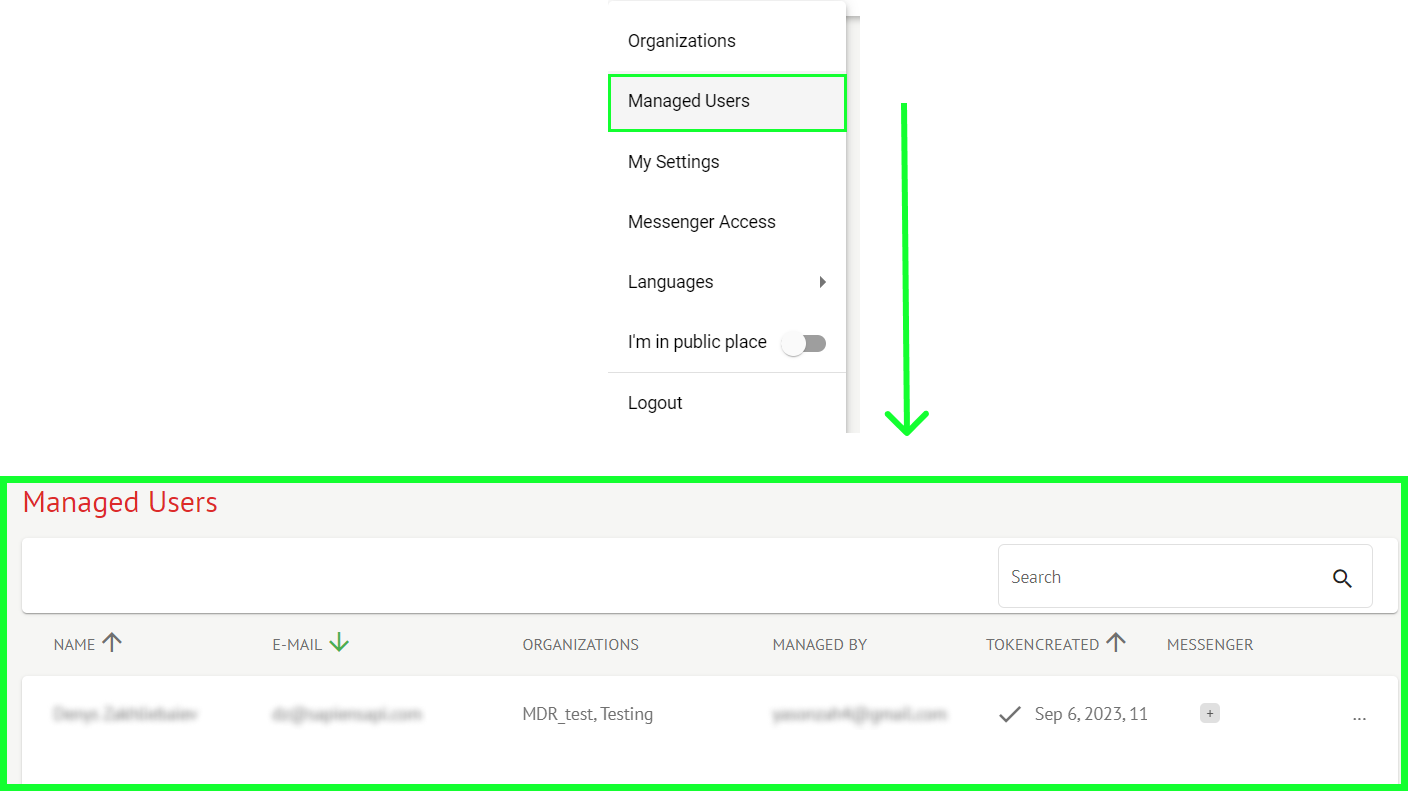
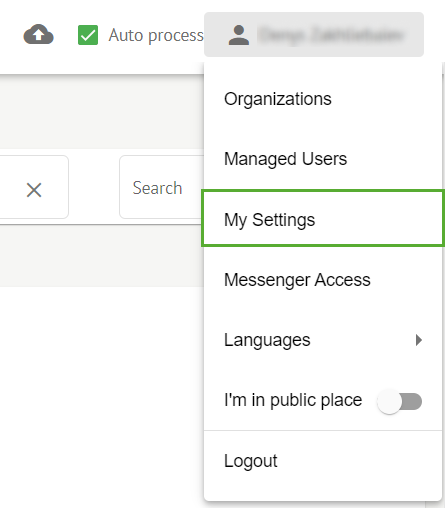
The option to setup Messenger access is available by clicking the Profile - Messenger Access:

The system shows the following screen when successful:
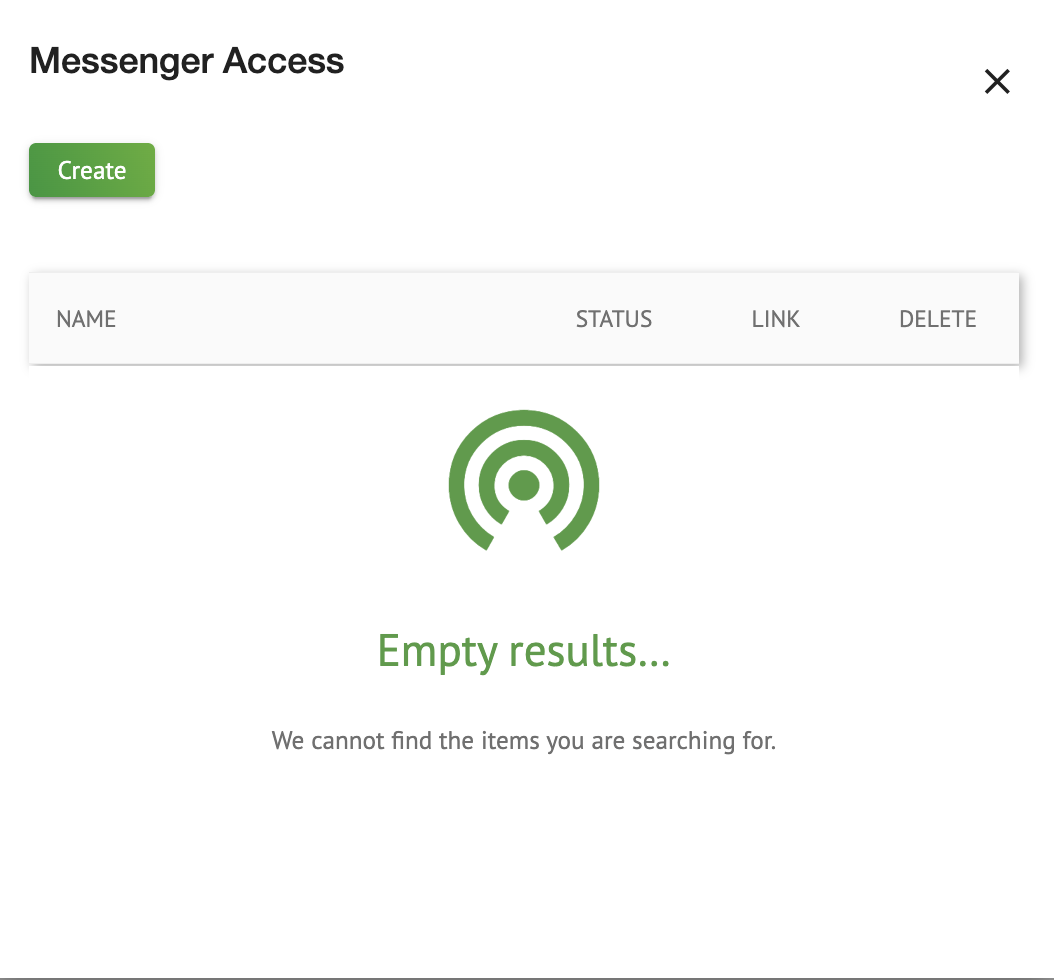
To create access, click Create button, fill the Name field and click Generate.
The Messenger available for creation access is Telegram.

The user is enabled to copy link under copy link button.
The user is enabled to access link under Go to link button:
The user is obliged to click Start button under Telegram Messenger.
Telegram Messenger shows the following screen when accessing link:
The option to add a new event to record via Telegram Messenger is available under Add event button. The following events available to add:
-
Nothing / Accidental tap: /event_none
-
Anxiousness: /event_anxious
-
Discomfort / Chest pain: /event_chest_discomfort
-
Dizziness: /event_dizziness
-
Heart palpitations: /event_heart_racing
-
Heart Fluttering: /event_heart_fluttering
-
Feeling of increased heartbeat: /event_palpitation
-
Premonition of fainting / Weakness: /event_feeling_faint
-
Shortness of breath / Shortness of breath: /event_short_of_breath
-
Fatigue / Exhaustion: /event_tired
-
Other: /event_other
Binding device to patient
The option to bind the ECG recorder device to patient and create a task under Awaiting For Record section is available under Bind device to patient button:
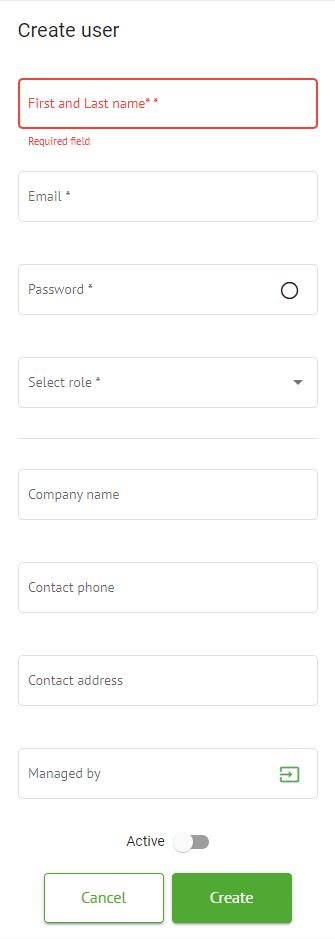
| Setting | Description |
|---|---|
| General section | |
| First name | Indicates the first name of the patient. |
| Last name | Indicates the last name of the patient. |
| Birthday | Indicates the date of birthday of the patient in the DD MMM YYYY format. The user is enabled to select the date of birthday under the Calendar view |
| Age | Indicates the age of the patient. This field is being modified by the system according to the changes with Birthday data. |
| Gender | Indicates the gender of the patient. The following genders available:
|
| Indications | Provides the indications of the patient. |
| Device Id | Indicates the Device ID of the patient from which the ECG data was obtained. |
| Recording start | Indicates the date and time of the ECG recording start. |
| Duration | Indicates the duration of the ECG recording. The following values are available:
|
| Presets list | Indicates the preset configuration of the report of the task, generated during the ECG task reviewing. The default value of the preset is default. The user is enabled to edit the presets. |
| Notification Email | Indicates the email address the generated task report will be sent to. The value by default corresponds to the value under User data. |
| Advanced settings | |
| Assigned to | Indicates the user the patient is assigned to. The available users correspond to the users within the organization. |
| Status | Indicates the status of the task. The following statuses available:
|
| UTC offset (minutes) | Indicates the timezone of the task. The option to set the timezone is available by filling in the field with the time of the time zone other than Greenwich in minutes. For a time zone west of Greenwich, a minus should be set in front of the number. Example: CET - 120. |
| Patient Id | Indicates the ID of the patient. |
| Ordering Organization | Indicates the name of the ordering organization of the patient. |
| Ordering Physician | Indicates the name of the ordering physician of the patient. |
| Ordering Phone | Indicates the name of the ordering phone of the patient. |
|---|---|
| Ordering Address | Indicates the address of the ordering organization of the patient. |
| Report Region | Indicates the region of the report of the task. The following regions available:
|
| Device Manufacturer | Indicates the manufacturer of the device from which the ECG data was obtained. The following manufacturers available:
|
| Device Name | Indicates the name of the device from which the ECG data was obtained. |
| Service Name | Indicates the name of the service of the patient. |
After filling the Device ID parameter and clicking Save button, the task appears under Awaiting For Record:
When the ECG recorder device connects to the XOresearch Cardio.AI™, the status of the task switches to Waiting for start.
If the ECG recorder was terminated early, press the Stop button to end the recording. The recording status will change to Recording completed.
The ECG recorder would start the data transmission process to XOresearch Cardio.AI™. The status of the record in the system should change to Uploading.
Patient data editing
The option to edit Patient’s data within the task is available under the Edit personal data button.