Огляд організацій
Розділ «Організація» дозволяє користувачеві ввести організацію для роботи з введенням та обробкою даних пацієнтів.
У розділі «Організації» доступна така інформація про організації:
| Налаштування | Опис |
|---|---|
| Загальний розділ | |
| Назва | Вказує назву організації |
| Шлях | Вказує шлях до організації, доступний за URL-адресою організації. |
| Статистика | |
| Не затверджено | Вказує кількість завдань, що не затверджені (попередньо затверджені) в організації. |
| Оброблено | Вказує кількість затверджених завдань в організації. |
| Скасовано | Вказує кількість скасованих завдань в організації. |
| Витрати | |
| Загалом | Вказує кількість витрат, які клієнт поніс під час роботи з програмним забезпеченням в організації. |
Список організацій, доступних для користувача, відображається на екрані «Організації» програмного забезпечення.

Опція доступу до організації активується натисканням на Організація:
Фільтри організацій
У розділі «Організації» користувач може фільтрувати організації за датою:
Користувач може налаштувати фільтр, ввівши дату вручну у форматі ДД/ММ/РРРР або за допомогою календаря:
Розрахунок витрат організації
Опція розрахунку витрат організації доступна після натискання кнопки «Розрахувати витрати»:
Опція розрахунку витрат у всіх доступних організаціях доступна під кнопкою «Завантажити витрати»:

Розрахунок витрат залежить від фільтра «Дата». За замовчуванням витрати розраховуються з першого дня поточного місяця.
Експорт витрат у CSV
Опція експорту витрат у формат CSV доступна після натискання кнопки «Експортувати витрати в CSV»:

Примітка. Опція експорту витрат стає доступною тільки після розрахунку витрат. Розрахунок витрат залежить від фільтра «Дата». За замовчуванням витрати розраховуються з першого дня поточного місяця.
Редагування організації
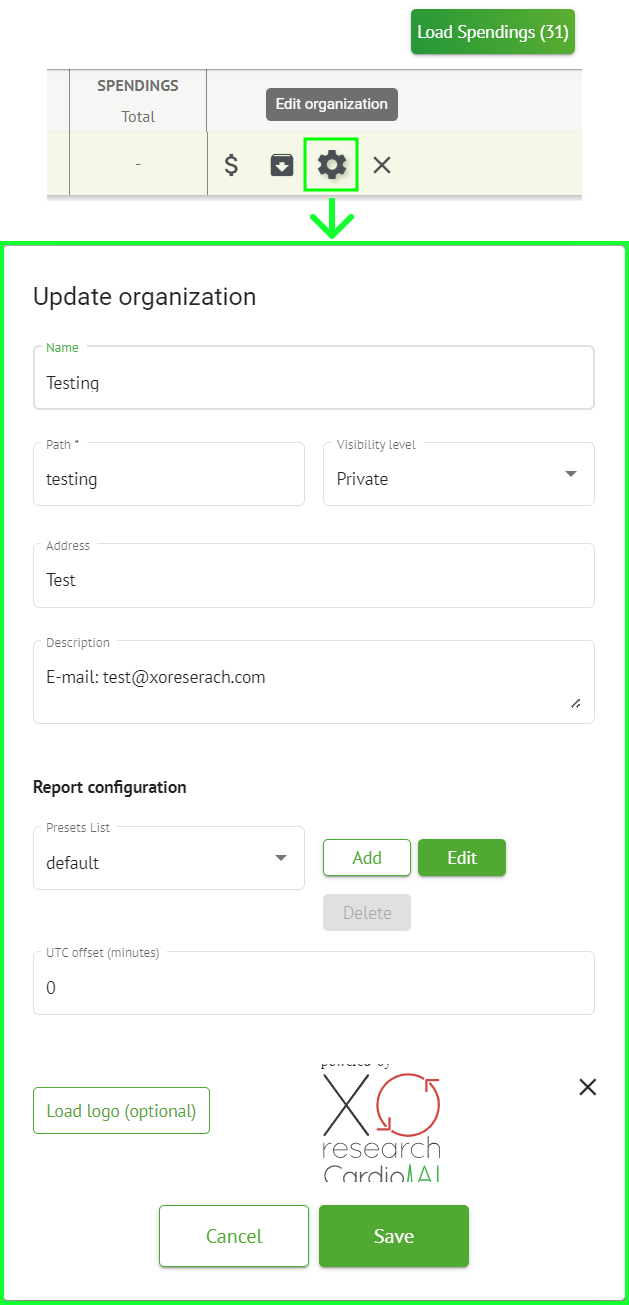
Опція оновлення даних організації доступна під кнопкою «Редагувати організацію»:
Наступна інформація про організації доступна для оновлення в опції «Редагувати організацію»:
| Налаштування | Опис |
|---|---|
| Загальний розділ | |
| Назва | Вказує назву організації |
| Шлях | Вказує шлях до організації, доступний за URL-адресою організації. |
| Рівень видимості | Вказує статус видимості організації для користувачів у програмному забезпеченні. Доступні такі рівні видимості:
|
| Адреса | Вказує фізичну адресу організації. |
| Опис | Вказує опис організації. |
| Конфігурація звіту | |
| Список попередніх налаштувань | Вказує попередньо встановлену конфігурацію звіту, створену під час перегляду завдання ЕКГ. Значенням за замовчуванням для попереднього налаштування є default. Користувач може додавати, редагувати та видаляти попередні налаштування. |
| Зсув UTC (хвилини) | Вказує часовий пояс організації. Опція налаштування часового поясу доступна шляхом вибору часового поясу зі списку:
За замовчуванням часовий пояс організації — EET | +03:00 Східноєвропейський час |
| Лого | |
| Логотип | Вказує логотип організації. Дозволяє користувачеві завантажити логотип, якщо він доступний, змінити та видалити існуючий логотип організації, якщо це необхідно. Допустимі такі формати зображень: .svg, .png, jpeg, .jpg. |
Попередньо встановлена конфігурація звіту організації
Опція доступу до попередніх налаштувань звітів організації доступна в розділі «Редагувати організацію» > «Конфігурація звітів»:
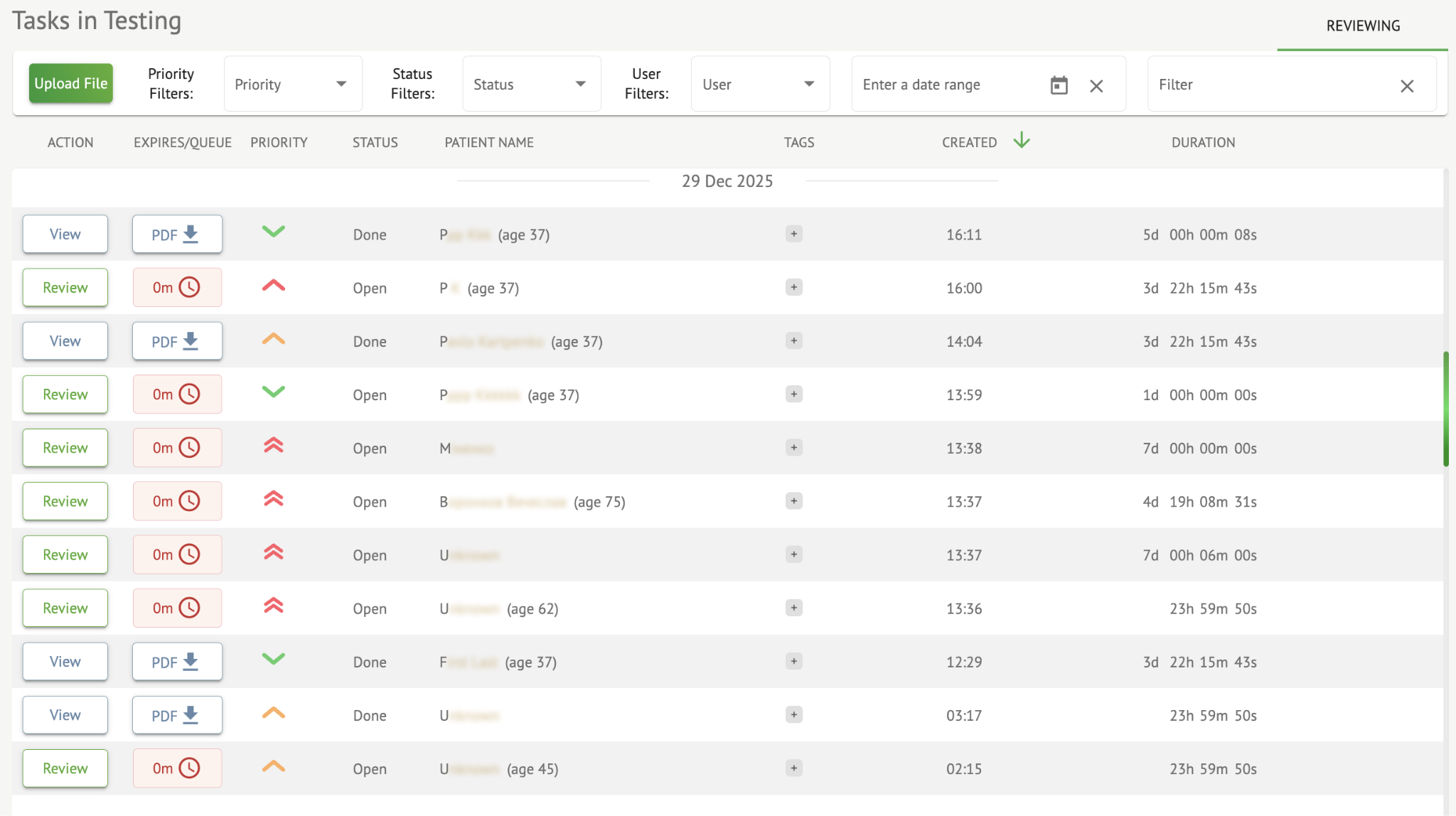
Увімкнене попереднє налаштування для організації встановлюється в списку «Попередні налаштування»:

Значенням за замовчуванням є default.
Опція додавання попереднього налаштування доступна в розділі «Додати». Cardio.AI показує наступний екран у разі успішного виконання:

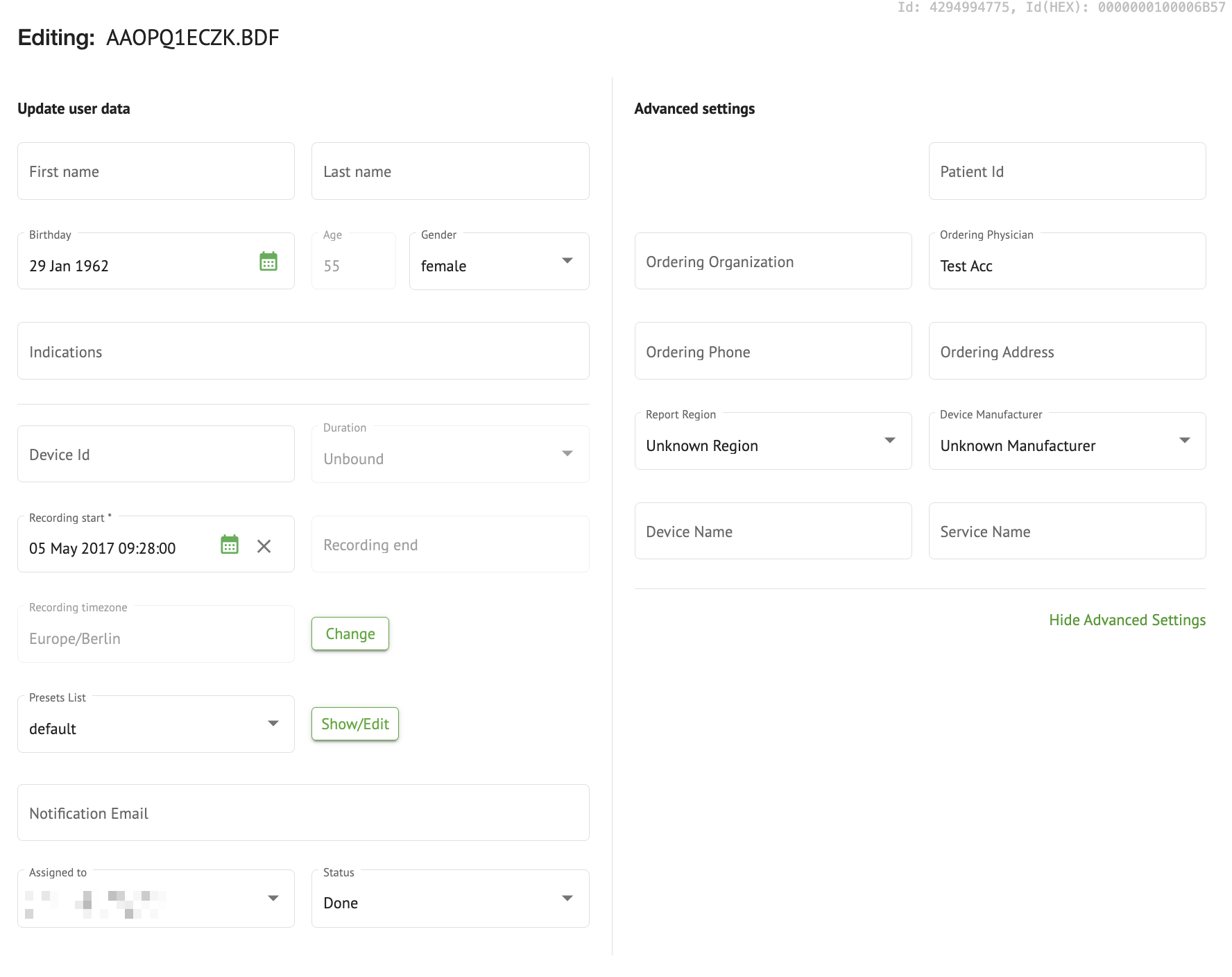
Наступні налаштування доступні в розділах «Додати попереднє налаштування» та «Редагувати попереднє налаштування»:
| Налаштування | Опис |
|---|---|
| Розділ «Загальні» | |
| Назва | Вказує назву пресету. |
| Заголовок | Вказує назву попереднього налаштування звіту. Коли назва встановлена, вона з'являється на першій сторінці звіту про завдання: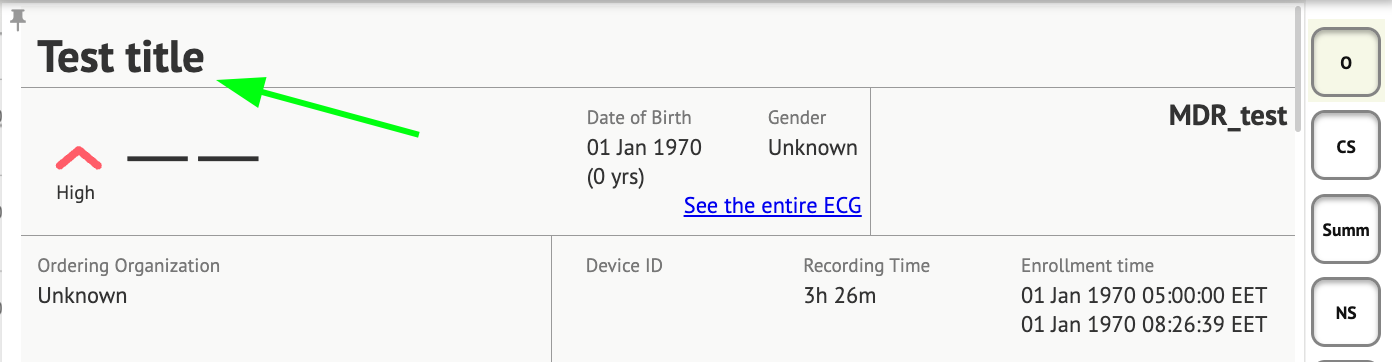 |
| Мова | Вказує мову, якою складається пресет. Доступні такі мови:
|
| Формат часу | Вказує формат часу пресету. Доступні наступні формати:
|
| Формат дати | Вказує формат дати попереднього налаштування. Доступні такі формати:
|
| Пріоритет | Вказує пріоритет статусу. Доступні такі пріоритети:
|
| Дані PQ | Дозволяє відображати дані про інтервал PQ з часом між початком хвилі P і початком комплексу QRS |
| Дані QRS | Дозволяє відображати дані комплексу QRS із тривалістю та морфологією кожного комплексу QRS. |
| Дані QT(c) | Дозволяє відображати дані QT(c) (скоригований інтервал QT) з тривалістю інтервалу QT, скоригованою з урахуванням варіабельності серцевого ритму. |
| Впорядковані розділи | Вказує частини звіту. Порядок впорядкованих розділів можна змінювати. |
| Стислий виклад | Дозволяє відобразити розділ, який вказує загальні висновки та ключові вимірювання моніторингу ЕКГ, включаючи дані про частоту серцевих скорочень, наявність передсердної або шлуночкової тахікардії та навантаження ектопічних ударів. |
| Зведена таблиця | Увімкнення розділу, який надає вичерпний огляд ключових показників ЕКГ, таких як варіабельність серцевого ритму, інтервали PQ та тривалість комплексу QRS, у вигляді таблиці. |
| Опис | Увімкнення розділу, який містить детальний опис періоду моніторингу, з виділенням значущих подій, аналізу ритму та будь-яких епізодів брадикардії або тахікардії. |
| Коментарі | Увімкнення розділу, який містить конкретні спостереження та висновки лікаря, що проводив аналіз, щодо ектопічних подій, блокад провідності та інших важливих висновків на основі даних ЕКГ. Цей розділ є вільним полем для введення коментарів під час перегляду аналізу ЕКГ. |
| Щоденна частота серцевих скорочень | Увімкнення розділу, в якому відображаються щоденні коливання частоти серцевих скорочень, включаючи максимальну, середню та мінімальну частоту серцевих скорочень, а також випадки фібриляції передсердь або блокади шлуночків. |
| Дні | Увімкнення розділу, в якому дані ЕКГ розбиваються по днях, що дозволяє детально вивчити закономірності серцевого ритму та випадки ектопічних ударів у різні періоди часу. |
| Варіабельність серцевого ритму (синус) | Увімкнення розділу, який відображає показники варіабельності серцевого ритму, надаючи інформацію про вегетативну регуляцію серцевого ритму протягом періоду моніторингу. |
| Сегмент ST | Увімкнення розділу, який візуалізує відхилення сегмента ST і надає аналіз потенційних ішемічних подій або аномалій, виявлених протягом періоду моніторингу. |
| Індекс щоденника пацієнта | Увімкнення розділу, який індексує значущі події або симптоми, про які пацієнт повідомив у щоденнику, співвідносячи їх з результатами ЕКГ для контекстного аналізу. |
| Щоденник пацієнта | Увімкнення розділу, що містить записи пацієнта щодо симптомів, активності або будь-яких важливих подій, які можуть корелювати з аналізом даних ЕКГ. |
| Індекс смуги | Увімкнення розділу, який упорядковує записи смуг ЕКГ за часом і типом події, що полегшує швидкий доступ до конкретних сегментів, які цікавлять для детального перегляду. |
| Смуги | Увімкнення розділу, який відображає фактичні смуги ЕКГ, що виділяють значущі серцеві події або інтервали, які цікавлять, виявлені під час періоду моніторингу. |
Опція додавання попереднього налаштування доступна після заповнення поля «Назва» та натискання кнопки «Підтвердити».

Опція редагування попереднього налаштування доступна шляхом вибору попереднього налаштування в спадному меню, натискання кнопки «Редагувати», внесення необхідних змін і натискання кнопки «Підтвердити».
Опція видалення попереднього налаштування доступна шляхом вибору попереднього налаштування в спадному меню, натискання кнопки «Видалити» та натискання кнопки «Підтвердити».
Примітка. Пресет за замовчуванням не можна видалити.
Видалити організацію
Опція видалення організації доступна під кнопкою Видалити організацію > Підтвердити:
